

Overview
GitHub can be connected in two ways:- GitHub App installation
- Create from manifest (recommended): Mistle creates and configures the GitHub App via a manifest
- Use an existing app: connect a GitHub App you already created in GitHub
- API key
- Use this when the connection only needs access to GitHub resources and does not need webhook events
Option 1: Connect With A GitHub App Installation
GitHub App installation gives access through the installed GitHub App and supports webhook events from GitHub. Choose one of these setup paths:- Create from manifest (recommended): Mistle creates and configures the GitHub App via a manifest.
- Use an existing app: connect a GitHub App you already created in GitHub.
Option 1A: Create From Manifest (Recommended)
- Open Integrations in the dashboard and choose the GitHub target.
- Select GitHub App installation.
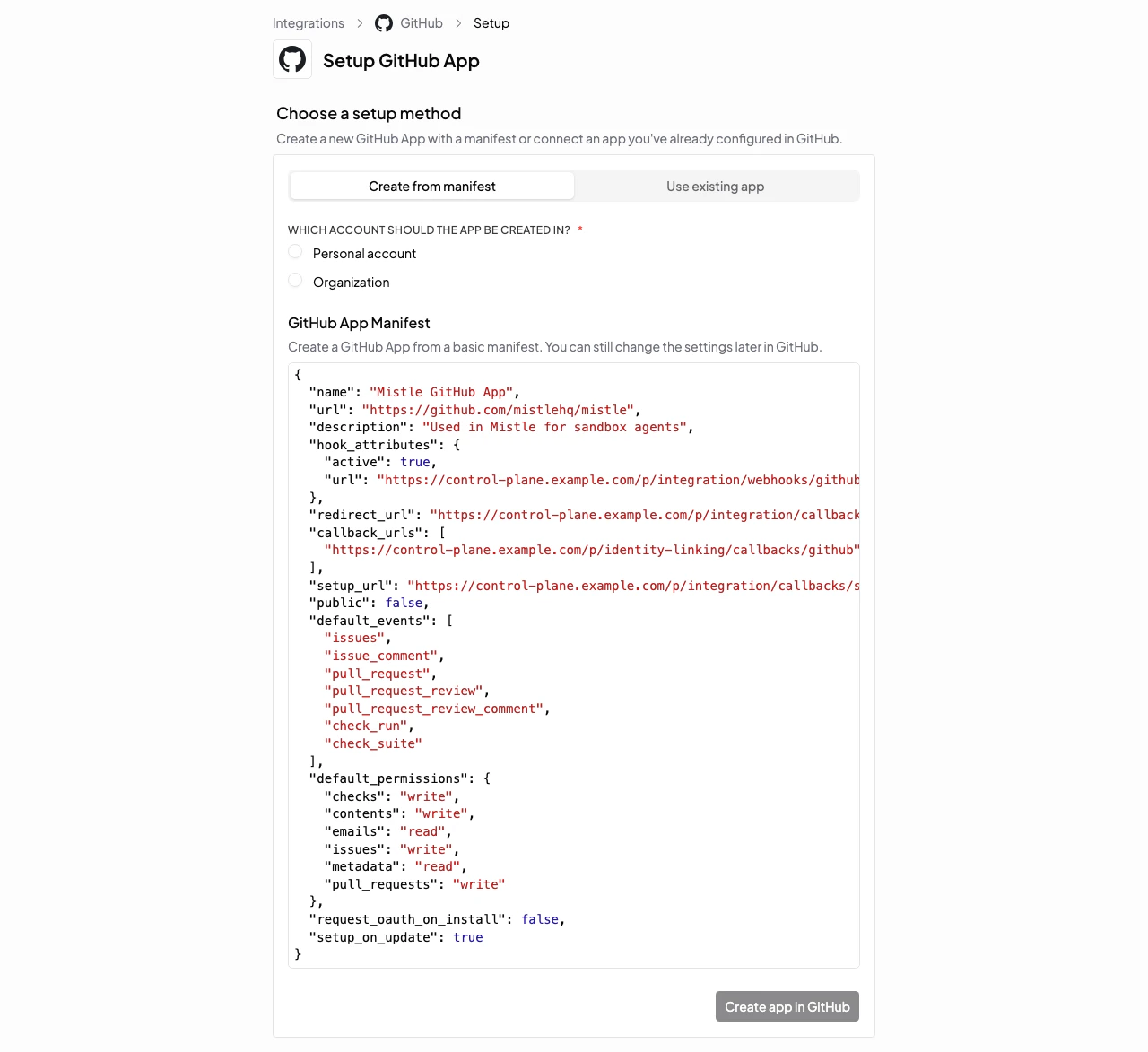
- Choose Create from manifest.
- Choose whether to create the app in a personal account or organization.
- Review and edit the manifest before creating the app.
- Submit the manifest to GitHub.
- Continue the installation in GitHub after the app is created.
- Return to Mistle to complete the connection.
Option 1B: Use An Existing GitHub App
If you already created a GitHub App in GitHub.com or GHES, you can connect it directly in Mistle. Configure these values in GitHub:-
GitHub App name (eg.
Mistle GitHub App) - Homepage URL - Any valid URL for your organization
- Callback URL - Not necessary. Omit.
- Webhook secret: create a secret that you will also enter in Mistle
-
Permissions - consider the following permissions in Repository Permissions:
- In Organization Permissions, enable Members with Read-only access when the app should sync GitHub teams for review-request trigger filters.
- In Organization Permissions, enable Organization administration with Read-only access when the app should sync GitHub App bots from installed apps in organizations with accessible repositories.
- If this app will be used for GitHub account linking, enable the Email addresses user permission with Read-only access.
- For Subscribe to events, enable the events you want Mistle to take action on. This can be changed later.
- Private key - Generate and download a PEM private key from GitHub App settings.
Connect The Existing App In Mistle
Open Integrations in the dashboard, choose the GitHub target, then select GitHub App installation. Enter:Client ID is required when this connection will be used for Identity Linking. Installation-only GitHub App usage does not require linked-user authorization.
Installation ID and setup action are stored automatically after the installation flow completes. You do not enter those manually.
App slug must be the actual GitHub App slug from GitHub, not a display name guess.
Copy The URLs From Mistle Into GitHub
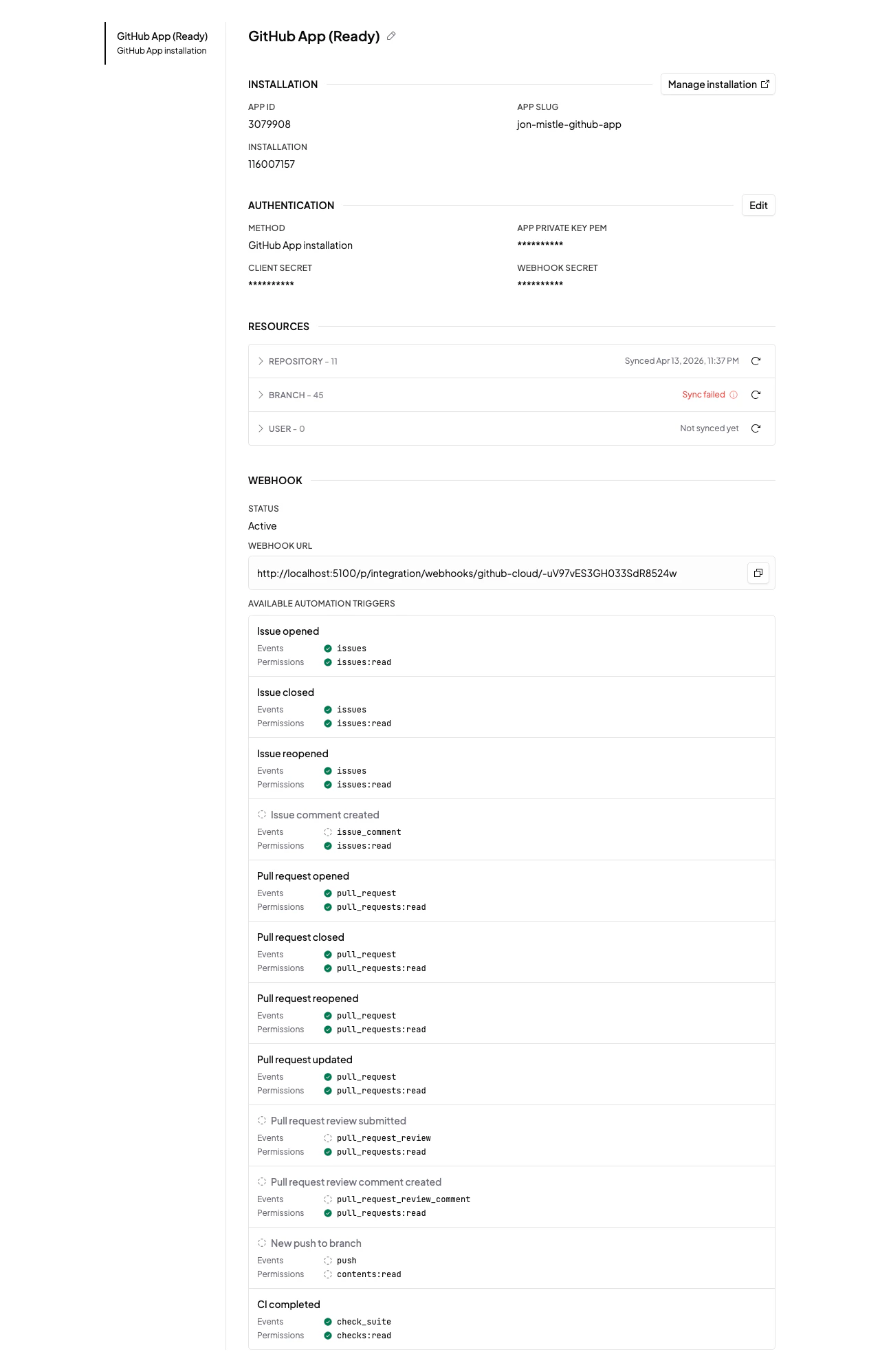
After you create the GitHub App connection, open that connection’s detail page in Mistle and copy:- Webhook callback URL
- Post-installation setup URL
- Set the GitHub App’s Webhook URL to Mistle’s Webhook callback URL.
- Set the GitHub App’s Setup URL to Mistle’s Post-installation setup URL.
- Ensure the webhook is active in GitHub.
Option 2: Connect With An API Key
API key gives access to the GitHub resources available to that token, but it does not support webhook events from GitHub. Create a GitHub personal access token or other API token with the scopes your workflows need, then create the Mistle connection with:
To sync GitHub teams for review-request trigger filters, the token must be able to read organization members for each organization whose teams should be listed. To sync GitHub App bots, the token must be able to read organization administration for each organization whose installed apps should be listed.
GitHub Enterprise Server
github-enterprise-server is currently only supported for self-hosted deployments.
It is also not enabled by default in the repository’s example target manifest.