

Overview
Use this guide to connect OpenAI and GitHub, publish a sandbox profile, wait for its snapshot, and start your first session.Prerequisites
- Access to a Mistle workspace
- An OpenAI API key or ChatGPT subscription
- A GitHub account with access to the repositories the agent should work in
Connect OpenAI
Open Integrations, choose OpenAI, and create a connection. For a simple first run, use API key and enter the OpenAI API key Mistle should use for model access. If your workspace uses interactive ChatGPT access instead, choose ChatGPT subscription and complete the device-authorization flow. Read OpenAI for the full connection options.Connect GitHub
Open Integrations, choose GitHub, and create a connection. For a simple first run, use GitHub App installation with Create from manifest. Mistle builds the GitHub App manifest, sends you to GitHub to create and install the app, then returns you to Mistle to complete the connection.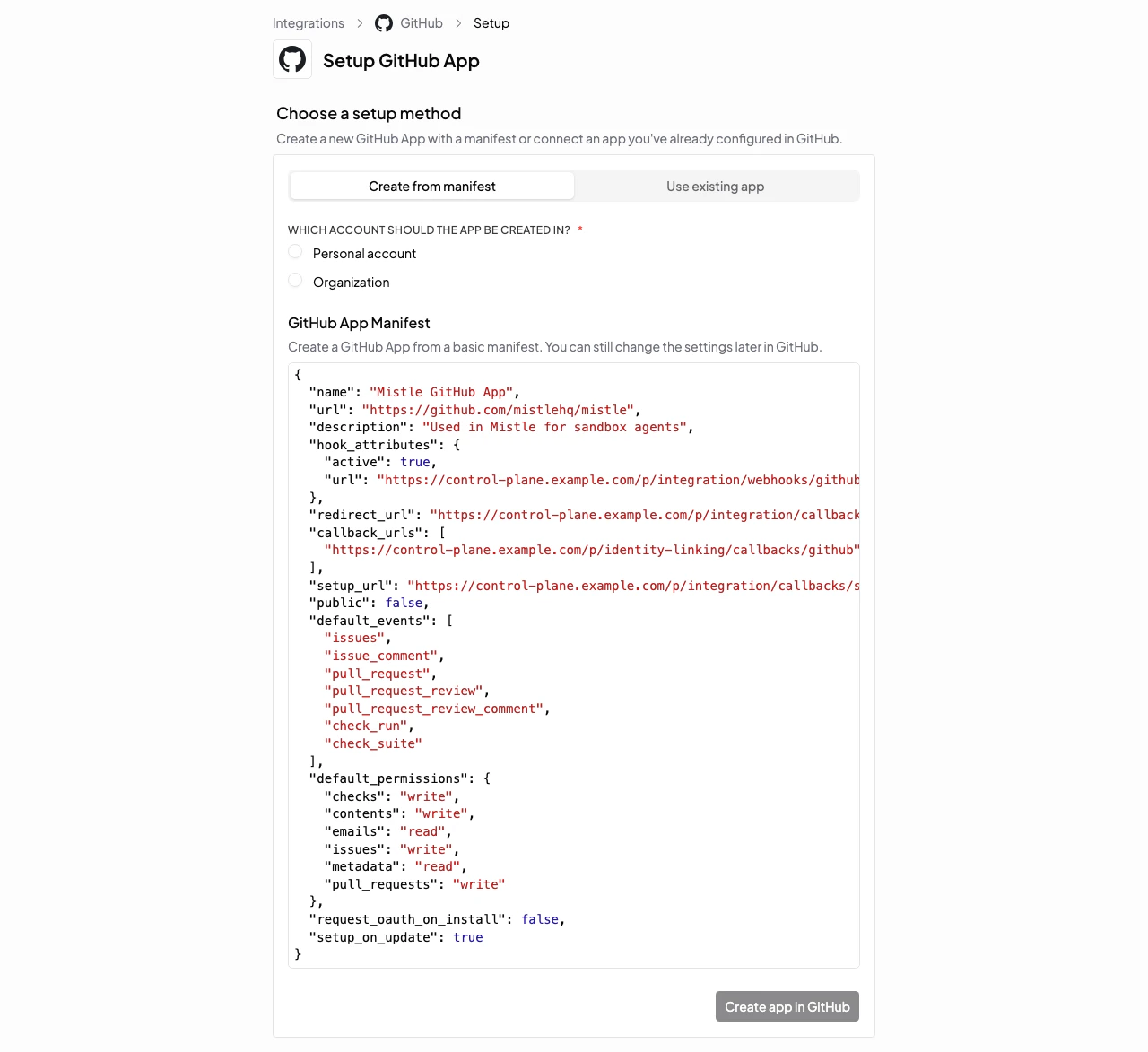
Create A Sandbox Profile
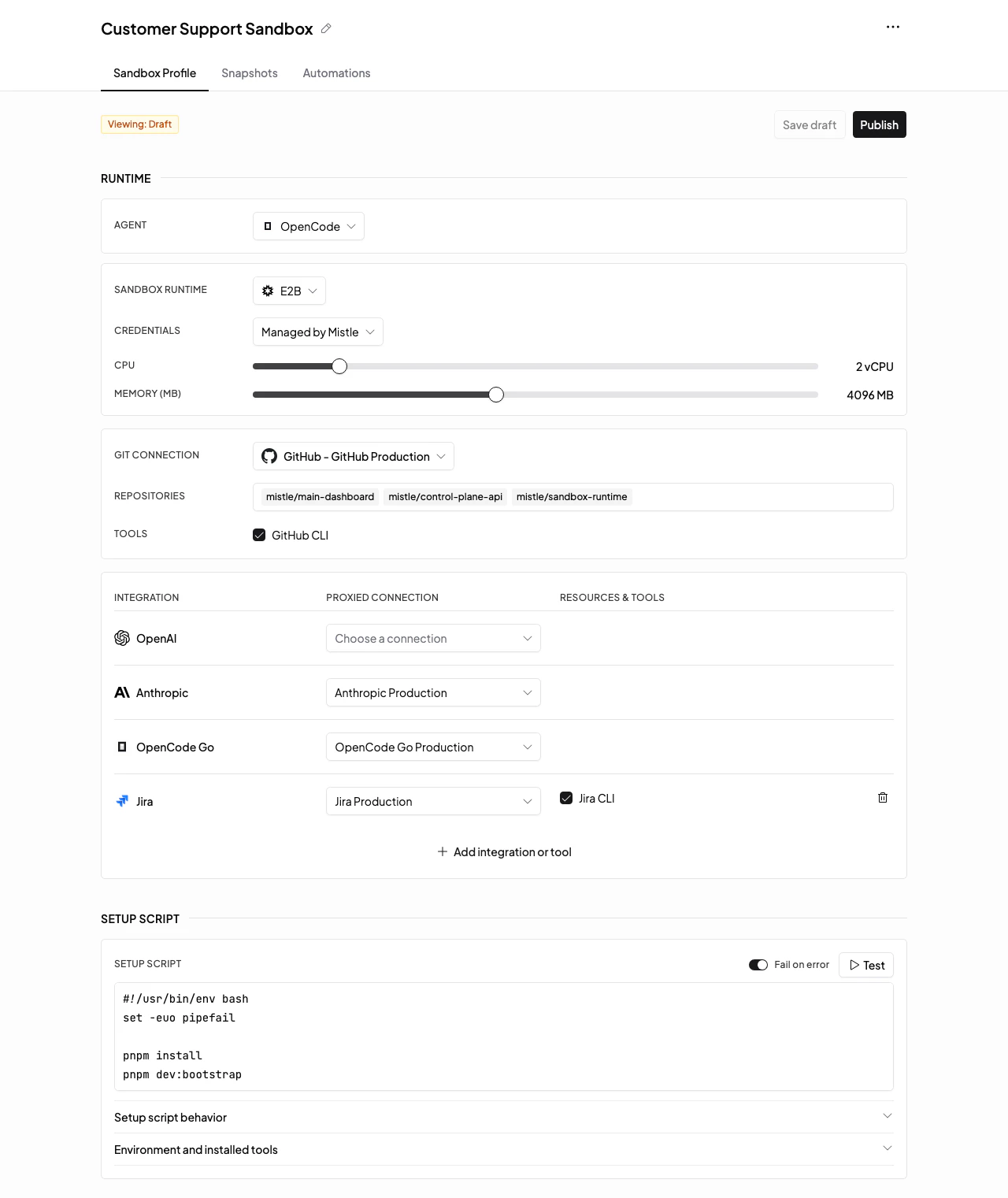
Open Sandbox Profiles and create a new profile. Configure the draft profile with:- Agent: choose Codex for an OpenAI-backed first session.
- Git Connection: choose the GitHub connection you created.
- Model provider: choose the OpenAI connection you created.
- Setup script: add the setup commands the agent’s sandbox should run before sessions start.
Publish And Wait For The Snapshot
Select Publish on the draft profile version. Publishing creates the published profile version and queues snapshot creation. New sessions can use that version after the snapshot is ready. The snapshot prepares the sandbox image by applying the published runtime plan and setup script. Wait until the snapshot status is ready before starting a session. If snapshot creation fails, inspect the snapshot output, update the draft profile, and publish a new version.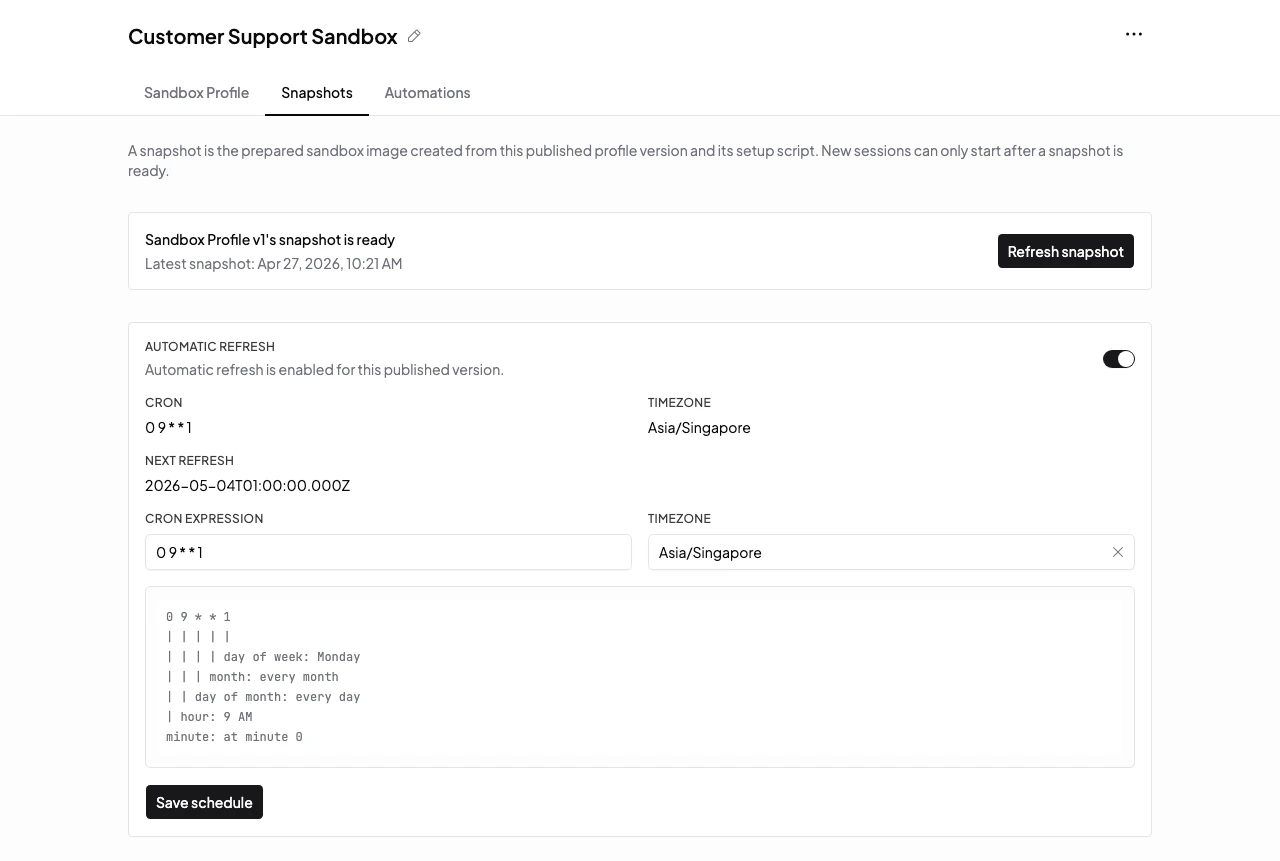
Start A Session
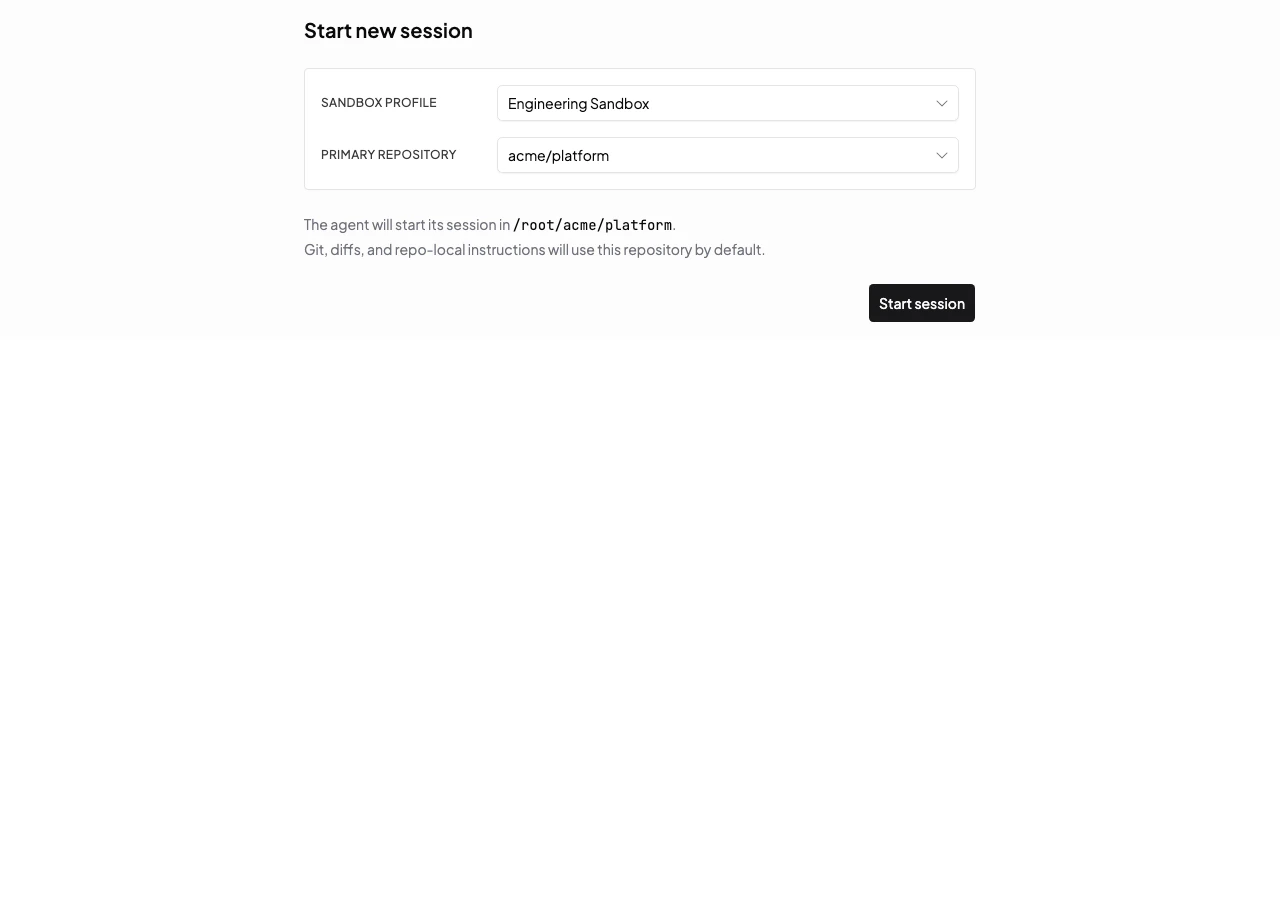
Open Sessions, create a new session, and select:- Sandbox profile: the profile you just published.
- Primary repository: the GitHub repository where the agent should start.
Next steps
- Read Sandbox Profiles to understand how sandbox environments are configured.
- Read Sessions to learn how to use the session workbench.
- Add connector integrations when the agent needs access to Slack, Jira, Linear, Datadog, or other external systems.